> ## Documentation Index
> Fetch the complete documentation index at: https://docs.tesouro.com/llms.txt
> Use this file to discover all available pages before exploring further.
# Payment Web Component
> Learn how to integrate Tesouro's Payment component into your apps to provide smooth payment experience for your users.
## Overview
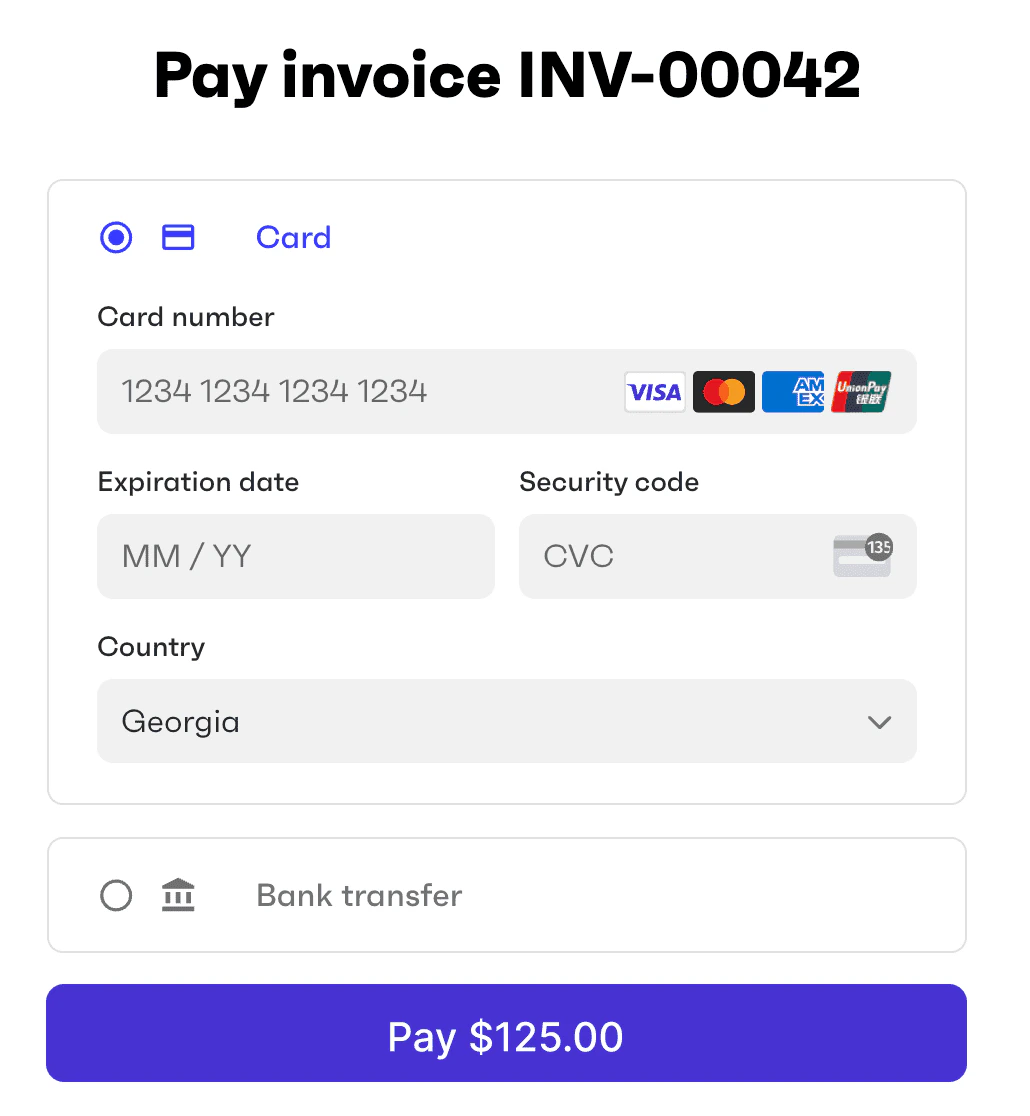
Tesouro provides an embeddable Payment component that allows our partners to build a custom invoice payment and BillPay experience into their applications or websites. The Payment component is an alternative to hosted payment pages, and allows users (organizations or their counterparts) to make payments without leaving your application.
From an integration perspective, using the Payment component requires:
* [**Server side:**](/finops/guides/authentication/client-credentials) to generate a payment link ID, receive [webhooks](/finops/guides/getting-started/webhooks/index) about the payment status, and (optionally) customize the look and feel of the Payment component.
* **Client side:** the Payment component handles all necessary payment-related requests and validates the inputs.
## Payment methods
The payment methods displayed by the component are configured when you generate a payment link ID for this component, as explained below.
Additionally, the organization that will receive or make the payment:
* Must have the necessary [payment methods](/finops/guides/payments/payment-methods) enabled. See [Enable payment methods for an organization](/finops/guides/payments/onboarding/enable-payment-methods).
* Must have completed the [onboarding](/finops/guides/payments/onboarding/index) (if any) required by those payment methods.
## Usage
Embedding the Payment component into your web page requires just two lines of code.
First, import the Payment component's module:
```html lines theme={null}
{/** Production only **/}
{/** Sandbox only **/}
```
Then initialize the Payment component:
```html lines theme={null}
```
The `PAYMENT_LINK_ID` must be generated in advance by calling [`POST /payment-links`](/finops/reference/openapi/payment-links/post-payment-links) with your partner access token. Payment links can be created for Accounts Payable [invoices](/finops/guides/accounts-payable/payables/collect) (organization pays), Accounts Receivable [invoices](/finops/guides/accounts-receivable/invoices/create) (organization gets paid), or arbitrary monetary amounts (organization pays or gets paid). For more information, see [Payment links](/finops/guides/payments/payment-links).
In the body of the `POST /payment-links` request, specify the [payment methods](/finops/guides/payments/payment-methods) you want to display in the component (assuming these methods are already enabled for the organization).
The following example creates a payment link ID for an external invoice that an organization issued to its counterpart. The counterpart is supposed to use your payment page to make the payment to the organization.
```sh expandable lines theme={null}
curl -X POST 'https://api.sandbox.tesouro.com/v1/payment-links' \
-H 'X-Finops-Version: 2025-06-23' \
-H 'Authorization: Bearer YOUR_ACCESS_TOKEN' \
-H 'Content-Type: application/json' \
-d '{
"payment_methods": [
"card"
],
"recipient": {
"id": "e575bbe2-38ef-48a4-b21a-b72801bd9d17",
"type": "entity"
},
"return_url": "https://return.url.com",
"amount": 1250,
"currency": "USD",
"payment_reference": "Inv 102",
"invoice": {
"issue_date": "2024-04-18",
"due_date": "2024-05-18"
}
}'
```
The response from `POST /payment-links` contains a unique `id`. This is the ID you need to pass to the Tesouro Payment component via the `` tag on your payment page.
```json {2} lines theme={null}
{
"id": "8a3b5037-ae70-42c3-8cf1-c10b44e07a8c",
"amount": 1250,
"currency": "USD",
...
}
```
## Customization
The look and feel of the payment component can be customized to match your branding. The colors and other styling options are controlled by the partner setting `payments.payment_page_theme`, which you can change by calling [`PATCH /settings`](/finops/reference/openapi/partner-settings/patch-settings). For details, see [Payment page customization](/finops/guides/payments/payment-page-customization).