

This page is about outgoing invoices sent by an organization to its clients. For the accounts
payable invoices received by an organization from its vendors, see
Payables.
Bank account
An invoice carries the bank account the client pays into. Identify it with two fields:bank_account_id and bank_account_type. Send both or neither, because providing one without the other returns 422.
bank_account_type tells Tesouro which resource owns the account:
To offer a choice of accounts, read all three lists and merge them. See Bank accounts for internal and external accounts, and Organization bank accounts for bank details records.
null.
Which accounts an invoice accepts
Tesouro resolves the account when you attach it or change it, and rejects it unless it’s usable:
The lists aren’t filtered by status, so drop unusable accounts before offering them.
Internal and external accounts are read with the access token of the user making the request, so
an invoice can reference them only on a request that carries an organization user
token.
What appears on the invoice PDF
Tesouro copies the account details onto the invoice when you attach the account, and renders four of them in the payment block: account holder, account number, bank name, and routing number. The copy is frozen at that moment, so editing the account afterwards doesn’t change an invoice that’s already issued. ThedocumentRendering organization setting controls whether the payment block renders at all. Paid invoices never show it.
Preselect an account
An organization can nominate a default bank account of any of the three kinds. It’s a hint for your own interface to preselect: Tesouro doesn’t apply it automatically, so an invoice created withoutbank_account_id has no bank account at all.
Create an invoice
To create an outgoing invoice, complete the following steps:- Create a counterpart that represents the customer.
- Create one or more products to be listed in the invoice.
- Create payment terms for the invoice.
- Configure payment reminders and overdue reminders for the invoice. (Optional)
- Create the invoice.
Create an invoice based on a quoteYou can also create an invoice based on an issued quote. For more information, see Create an invoice based on a quote.
1. Create a counterpart
The counterpart represents the customer purchasing your product or service. It is required for creating an invoice. Learn how to create counterparts.2. Create a product
The products or services to be listed in the invoice also must be created in advance. Depending on the organization’s country, measure units may be required for products before the invoice can be issued. Learn how to create products and measure units.Product currencies on invoicesCurrencies of products added as line items on an invoice must always match the invoice’s base currency. You can create products in multiple currencies to match the invoice’s base currency. For more information, see Create a product.
3. Create payment terms
Payment terms define when the invoice is due to be paid. A common payment term is Net 30, which means the full payment is expected within 30 days. Payment terms can also include early payment discounts to encourage customers to pay upfront. Learn how to create payment terms.4. Create the invoice
Once the required counterpart, products, and payment terms are created, you can create the invoice for a given counterpart by callingPOST /receivables endpoint with the type field in the payload set to invoice.
An invoice must specify the applicable tax rate for its line items - this can be set leveraging the tax_rate_value field in the invoice line item object.
memo note, fulfillment_date (if different from the invoice date), discount, and other fields.
Notes
- If the organization has invoice payment reminders enabled (that is, organization setting
reminder.enabledistrue), the invoice payload MUST includepayment_reminder_id.
id assigned to the created invoice, along with the calculated total (total_amount), subtotal (subtotal), tax (total_tax_amount), and other information. The invoice’s due date is automatically calculated based on the creation date and payment terms, and is returned in the due_date field on the invoice response object.
POST /receivables endpoint.
Auto-calculated amounts
Tesouro automatically calculates the subtotal, total, and tax amounts for the entire invoice and individual line items. These amounts are included in responses from the/receivables* endpoints. You can display these amounts in your application and use them in your business logic.
line_items[i].total_before_tax- line item amount including the discount but excluding sales tax.line_items[i].total_after_tax- line item amount including the discount and sales tax.subtotal- invoice subtotal as a sum of line item subtotals. Tax and invoice-level discount are not included, but line item discounts are included.subtotal_after_tax- a sum ofsubtotalandtotal_tax_amount. In other words, it is the invoice subtotal including tax and line item discounts, but excluding invoice-level discount.discounted_subtotal- invoice subtotal after invoice-level discount. Tax is not included.total_tax_amount- total tax amount for the entire invoice.total_tax_amounts- a list of tax rates used in the invoice, along with the calculated total tax amounts for each rate.total_withholding_tax- ifwithholding_tax_rateis provided, the total withholding tax is calculated as the specified percentage of thediscounted_subtotal.total_amount- total invoice amount including sales tax and all discounts (except payment term discounts). It’s the sum ofdiscounted_subtotalandtotal_tax_amount, minustotal_deduction_amountandtotal_withholding_tax(if any).total_amount_with_credit_notes- this istotal_amountminus the amounts of all credit notes issued for this invoice. The value is updated whenever a new credit note is issued for this invoice.total_deduction_amount- the sum of all deductions that are applied after tax (not to be confused with discounts).amount_due- the remaining amount to be paid for this invoice. Initially, it equals thetotal_amount_with_credit_notesvalue and is automatically adjusted with each payment made towards the invoice. After the invoice is fully paid, theamount_duebecomes 0.amount_paid- the total amount paid towards an invoice. The initial value starts at 0 and can be continually updated for partially paid invoices. For more information, see Record payments on an invoice.amount_to_pay- this isamount_dueadjusted to reflect the currently effective discount (if any) defined by the payment terms. Payment terms discounts take effect once the invoice has been issued. If you create a payment link for the invoice, this is the amount displayed on the payment page.
All monetary amounts are specified in minor currency
units, such as cents or pence.
Download the invoice as PDF
After creating invoices, you can download the invoice as a PDF or send it to the customer via email. Tesouro automatically generates the PDF version of invoices in the counterpart language and the organization language, and returns links to these files in thefile_url and original_file_url fields of invoice responses:
If
file_url or original_file_url is null, repeat the request to GET /receivables/ {invoice_id} after some time.GET /receivables/{invoice_id}/pdf-link:
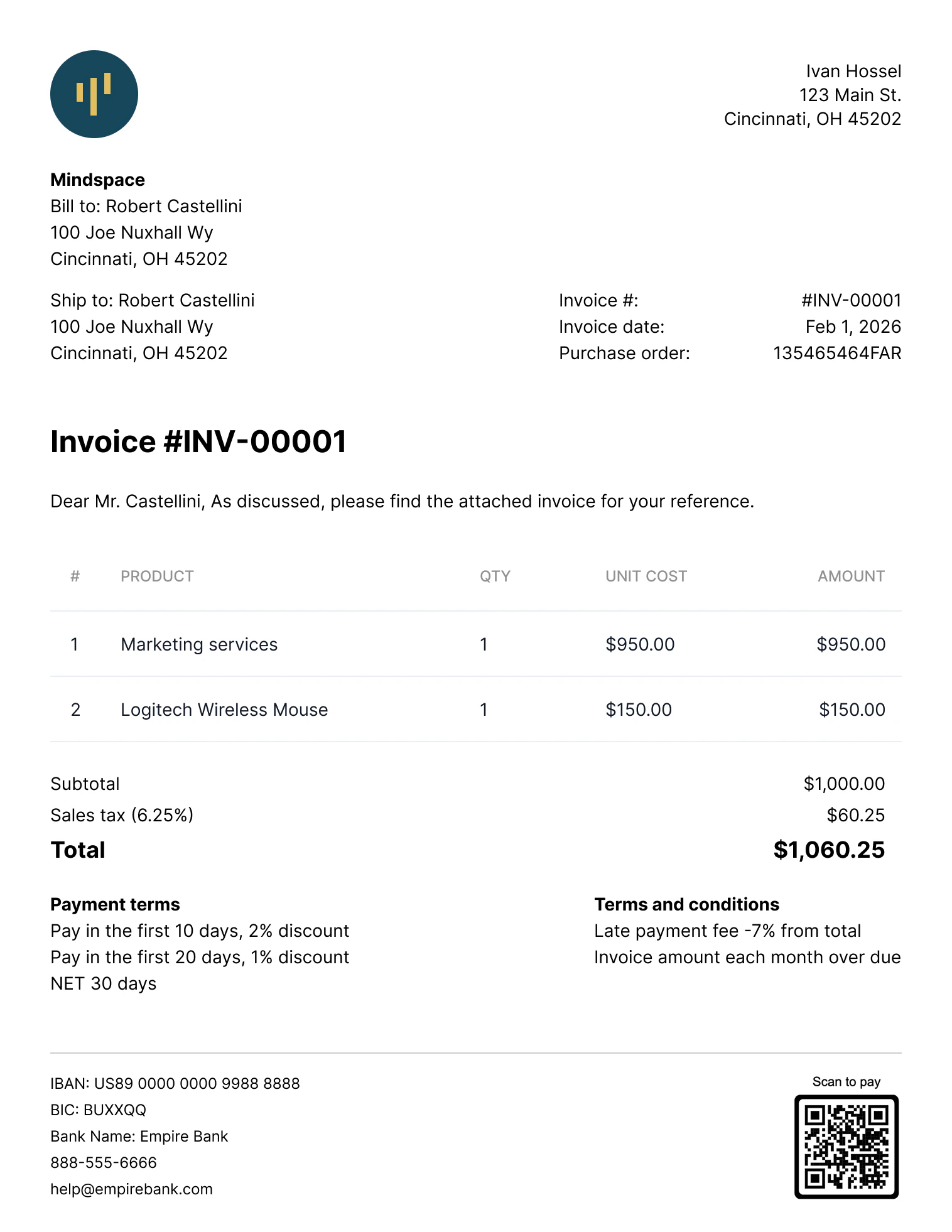
A PDF invoice
Invoice customization
Tesouro allows organizations to modify organization information on an invoice. This includes providing a different organization logo, website, and contact information on the invoice object. You can only do this after creating the invoice by updating the invoice using thePATCH /receivables/{receivable_id} endpoint.
Modifying the organization information on the Invoice object only affects that invoice. The
organization’s existing or newly created invoices will retain the original organization
information.
PDF localization
Tesouro provides several built-in PDF templates for receivables. The language on the invoice’s PDF depends on the language of the invoice’s counterpart. If the counterpart language is absent, Tesouro creates the invoice PDF in the organization’s language. Updating the invoice’s counterpart language or changing the invoice’s counterpart to a counterpart with a different language will also update the invoice’s PDF translation. For more information, see PDF localization. Tesouro formats delimiters and decimal separators on amounts displayed on the PDFs based on the organization’s country. Organizations can change their default template or customize their chosen templates anytime. For more information, see PDF templates.Verify the invoice
CallPOST /receivables/{receivable_id}/verify to check that an invoice has all required information — organization, counterpart, line items, and tax rates — before issuing it:
errors object in the response shows all the missing information required on the invoice. If the invoice has all required information filled in, all response fields have the null value. The warnings object in the response represents possible faulty configurations on the invoice. For example, a mismatch between payment terms and payment reminders:
tax_id.
Send the invoice via email
Once a draft invoice has been finalized, you can send it to the counterpart via email. The invoice will be attached as a PDF file to the email. You can also preview the invoice’s email before sending it; for more information, see Preview an invoice’s email. To send an invoice, callPOST /receivables/{receivable_id}/send and provide the subject_text and body_text. The language of the email template used is determined by the counterpart’s language.
Aside from the counterpart’s default email address, Tesouro also allows you to provide a list of email addresses to send the invoice using the recipients field. If the recipients field isn’t provided, the invoice email is sent only to the counterpart’s email address.
Notes
- The values of the
subject_textandbody_textfields will replace thesubject_textandbody_templatevariables if they were used when creating your custom templates. For more information, see Create and manage email templates and Variables list. Both the subject and body texts can include variables as placeholders for invoice-specific and counterpart-specific data. - You can opt to attach the invoice’s PDF to the email sent to the counterpart. To do this, you must update the value of the
mail.attach_documents_as_pdffield totruein your Tesouro partner settings.
To email address is taken from the Counterpart object associated with the invoice. This address is also returned in the counterpart_contact.email field of the Receivable object that represents the invoice.
All invoice emails are sent from the noreply@tesouro.com email address by default. You can customize the email domain name—@exampleCompany.com— by configuring a mailbox for the organization. You can also customize the email sender name and username by updating your Tesouro partner settings. For more information, see Update partner settings.
A 200 OK response from POST /receivables/{receivable_id}/send means Tesouro’s email server successfully sent the email.
Notes
- Sending a
draftinvoice changes its status toissued, and theissued_datefield is automatically set to the current date and time. Issued invoices can no longer be edited. - Invoices in the
uncollectiblestatus can’t be sent via email. All other statuses can be sent.
Resend an invoice
To resend an already issued invoice, you can callPOST /receivables/{receivable_id}/send again, optionally with different subject_text and body_text templates.
Tesouro also automatically sends payment reminders to the counterpart before the invoice due date and each payment term.
Resending an invoice does not change its
status or issued_date.