

Prerequisites
You must have a partner account in Tesouro.1. Set up partner accounts on accounting platforms
Partners must set up accounts in QuickBooks Online and Xero to successfully support integrations with these accounting systems.2. Provide accounting credentials to Tesouro
After creating a partner account in QuickBooks or Xero, partners must provide their secure application keys (API Key and Secret) for whichever platform they intend to integrate with Tesouro. To do this, please send the credentials to dev-accounting@tesouro.com via a secure password manager or file sharing tool, such as BitWarden.3. Generate a Tesouro partner access token
To authenticate your API calls with Tesouro, you need to generate a partner-level token. To do this, callPOST /auth/token with the following parameters:
4. Set up organizations in Tesouro
If you have not already, create organizations in Tesouro that represent your customers. Since the connection to an accounting system is configured on the organization level, Tesouro partners must have organizations in Tesouro before proceeding further. Organizations that use accounts receivable must also create their product catalog in Tesouro before setting up an accounting connection.5. Establish organization connection to an accounting system
To establish a new accounting connection that allows an organization to synchronize all its accounting data with a third-party accounting system, callPOST /accounting-connections. In this request, you must pass the organization ID in the X-Organization-Id header:
201 Created response contains the information about the newly created connection:
connection_url value as you will need it on the next step.
Each organization can connect to only one accounting system at a time. The organization must
be disconnected from any previous system before they can successfully establish a new connection.
To disconnect an organization from an accounting system, call [`POST /accounting-connections//disconnect`](/finops/reference/openapi/accounting-connections/disconnect-system) endpoint. For
more information, see Disconnect an accounting
system.
6. Organization user authorizes their connection
Send theconnection_url value obtained on the previous step to the organization representative. This URL looks like this:
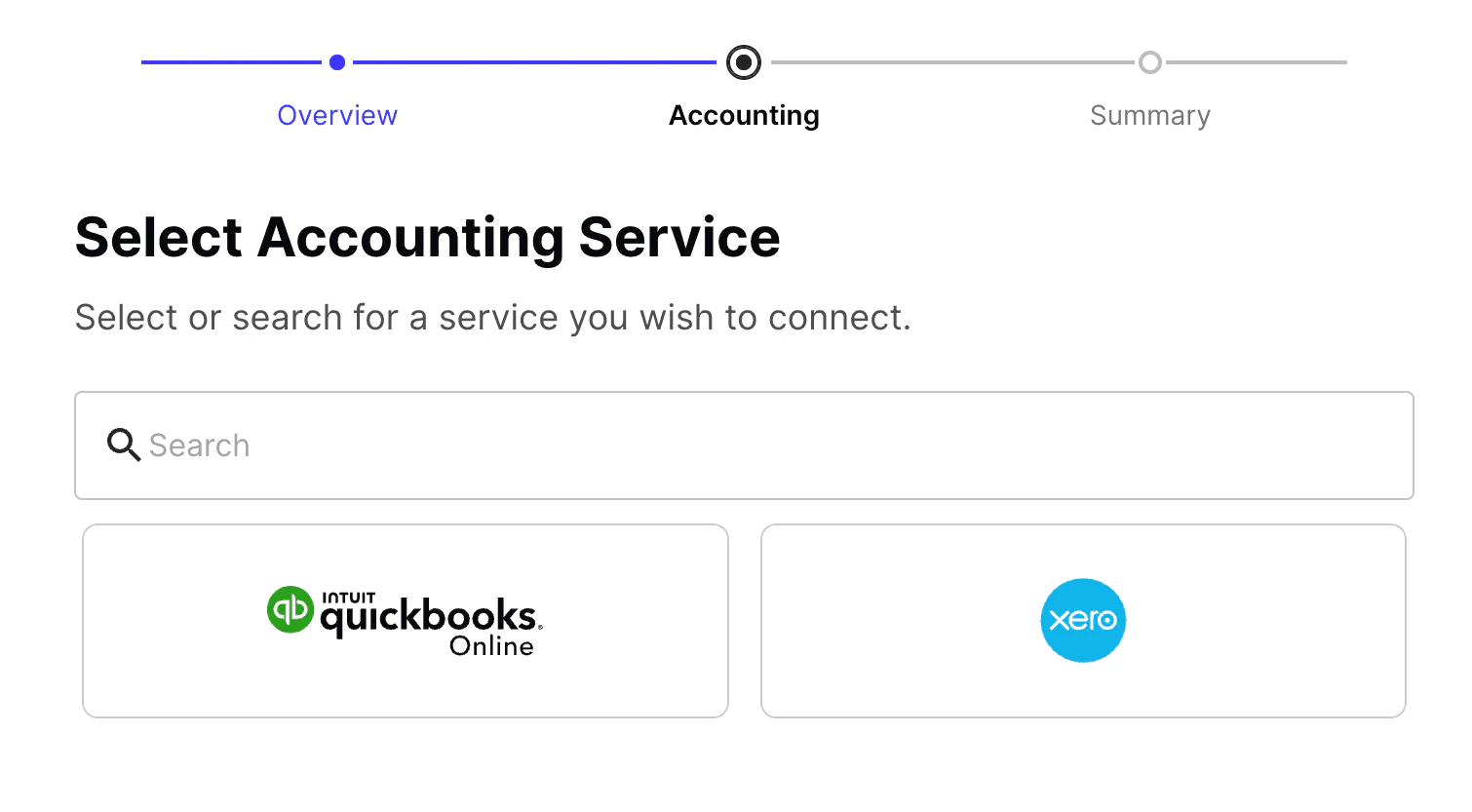
Authorization page
Partners can customize specific attributes on the authorization page. To do this, please contact
your Tesouro Customer Success Manager.
platform field will contain the organization’s chosen accounting platform and the value of the status field in the accounting connection object will be connected. You can confirm this by calling GET /accounting-connections/{connection_id}. This endpoint returns information about the organization’s connection to an accounting system including the status of the connection and the last synchronization.
What’s next
- Assign ledger accounts to products, line items, and payment records so that they can be successfully pushed.
- Learn how invoices are pushed.